You need a clear structure, disciplined plugin choices, and a consistent setup process to keep a WordPress site manageable long-term. If even one of these is missing, the site becomes harder to maintain than it should be.
Fortunately, this doesn’t mean everything has to be perfect from the start. A maintainable WordPress website is built in the right order, with the correct foundations set first. When those foundations are solid, adding pages, features, or plugins later doesn’t create unnecessary complexity.
This WordPress site setup guide breaks down how to build a site that stays simple to manage over time. You’ll learn the setup decisions, site structure, and plugin strategy that prevent long-term maintenance problems before they start.
Read on to learn more.
Why Your WordPress Setup Starts Before You Install Anything
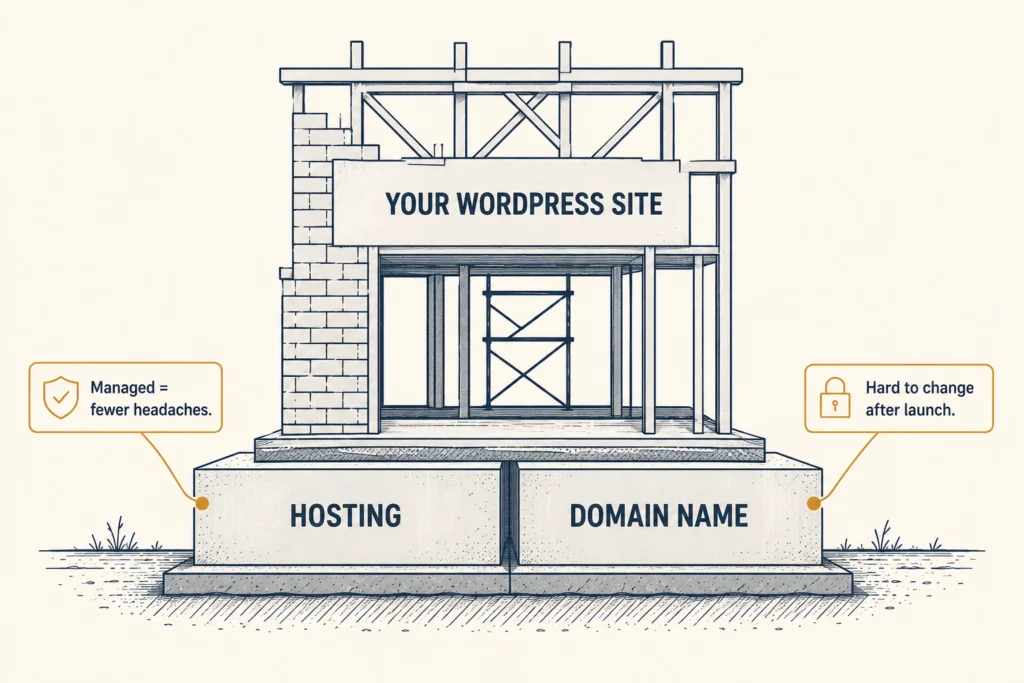
Most long-term WordPress issues are caused by early hosting and domain decisions that set the foundation for everything that follows. That makes hosting and a domain your two priorities before installation.
Below, we’ll look into both of them.
Hosting Affects Performance From Day One
Your hosting provider is essentially the land your website sits on. And the quality of that land affects everything built on top of it. If your web host is slow or unreliable, you’ll deal with longer load times, downtime, and a more frustrating WordPress setup from the start. Managed WordPress hosting helps reduce those issues by handling server security, updates, and optimisation automatically. It also removes a large part of the ongoing maintenance burden.
Domain Names Are Hard to Change Later
Compare a domain like “best-brisbane-web-design-247.com” with something short and direct like “brisbanedesign.com.” The difference shows up immediately in how easy each one is to remember, type, and share with a potential customer. Even if the business is identical, the shorter domain feels cleaner and more professional.
And more importantly, it’s much easier to change before you launch than after. Once your site is live, changing that domain name means fixing links, redirects, and search visibility across the board. That’s why it’s worth settling on the right one before you connect it to your hosting and start building.
Pro Tip: Register your domain separately from your hosting provider. That way, if you ever need to switch hosts, you keep full control of your own domain without any complications.
Once these two are sorted, you’re ready to install WordPress with a much cleaner foundation under you.
Install WordPress and Configure the Basics First
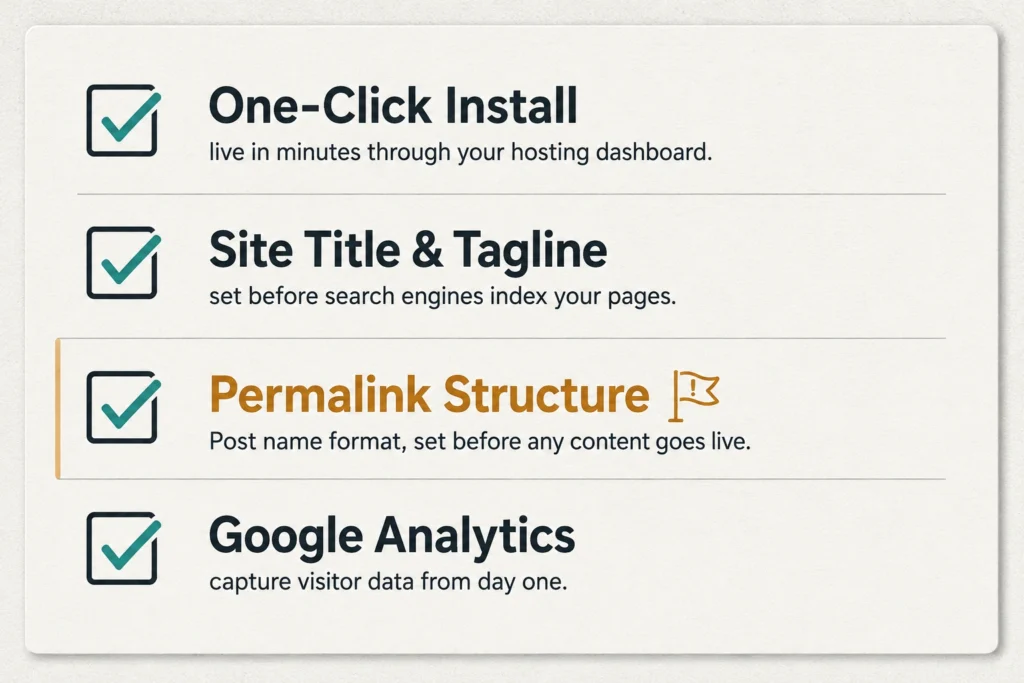
When the basics are configured properly on install, you won’t have to undo messy settings later when your site already has content and traffic on it. Here’s what to set up before you add a single page or plugin:
- One-Click Install: Most hosting providers offer a one-click WordPress install through their dashboard, letting you set up WordPress in minutes. It’s the fastest way to get started without manually uploading files or dealing with PHP configurations.
- Site Title and Tagline: Once you’re inside the WordPress dashboard, update your site title and tagline immediately. These are two of the first things search engines read, so launching with placeholder text is worth avoiding.
- Permalink Structure: Set your permalinks to “Post name” before you create any pages or posts. This gives your site clean, readable URLs that are easier for both visitors and search engines to follow. Changing your permalink structure after content is live can also create unnecessary redirect headaches.
- Google Analytics: Your traffic data is only useful when it starts from the moment your site goes live. Setting it up during installation ensures you capture early visitor data and understand how your site is performing from the start.
Once these basics are in place, you can start building pages and adding features without needing to revisit core settings later.
Choosing a WordPress Theme That’s Built to Last
We worked with a Fortitude Valley café last year that chose its theme based on the homepage demo. It looked great at first, but six months later, the site was timing out on mobile and breaking with plugin updates.
This shows that visual appeal and performance don’t always go hand in hand. That’s because bloated themes often add unnecessary code that slows your site down. That’s why we recommend starting with lightweight options like Astra and GeneratePress. Not only are they fast, but they’re easy to customise and compatible with most plugins without conflict.
You can also go with a premium theme if it’s built on the block editor and stays regularly updated. That combination keeps your website compatible with new WordPress core updates and reduces the chance of conflicts down the line.
One Thing to Note: Whatever you choose, make sure it’s tested on mobile devices before you commit. Mobile devices account for around 66% of global web traffic, so a theme that fails on mobile will cost you visitors and search visibility.
The WordPress Plugins You Actually Need (And the Ones to Skip)
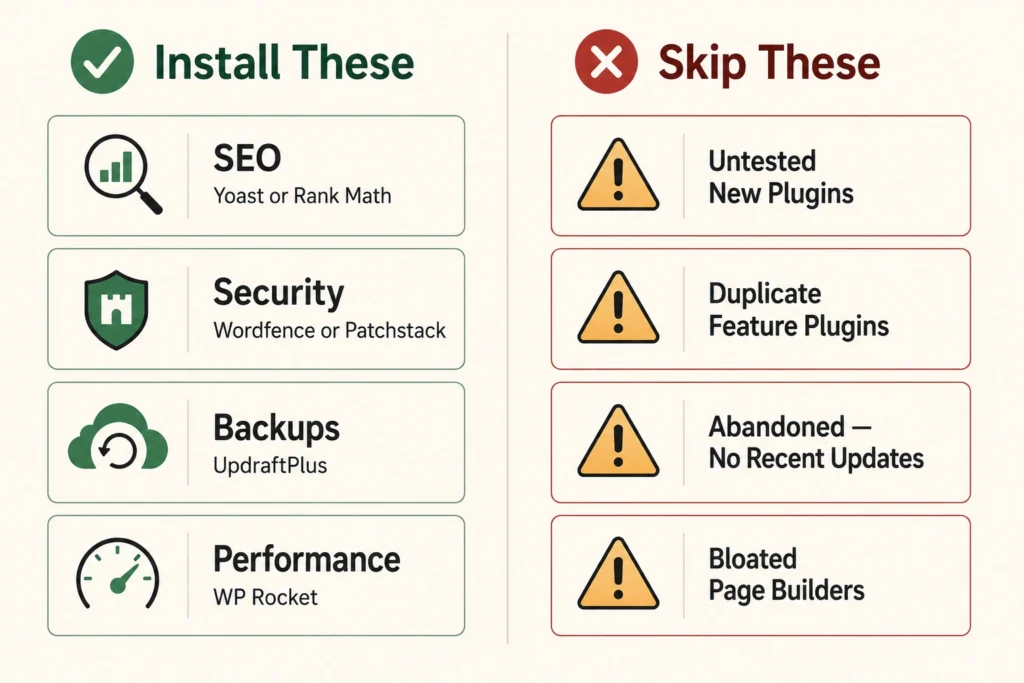
Every extra plugin you don’t need is another thing that can break during an update. Below, we break down the core plugins worth installing on every WordPress site:
- SEO: If you want people to find your site on Google, you’ll need Yoast SEO or Rank Math. Both handle meta tags, sitemaps, and readability checks without needing much configuration after setup.
- Security: Don’t wait for something to go wrong before thinking about security. To stay ahead of problems, you can use tools like Wordfence or Patchstack that run active threat monitoring in the background. Both catch security issues before they have a chance to affect your site.
- Backups: UpdraftPlus automates your backups and stores them off-server, meaning a site crash won’t take your backup down with it.
- Performance: Slow websites lose visitors quickly, especially on mobile, where patience runs thin. A caching and optimisation plugin reduces load times by handling performance-heavy tasks automatically. WP Rocket is one of the most widely used options for this.
When you install WordPress plugins, stick to ones with a strong update history and an active support base. New plugins with no track record are worth avoiding until they’ve been tested by the wider WordPress community.
Using the Block Editor to Build Pages
Think of the block editor as drag-and-drop furniture. You move things around until the room looks right (no tools required).
Each element on the page sits in its own block, including headings, images, buttons, and everything in between. You can move, duplicate, or delete any of them without affecting the rest of the page. When you’re done, click publish, and the changes go live. It really is that simple.
The block editor also supports reusable blocks, so you can save a block once, reuse it across multiple pages, and update it in one place. For a small business owner managing their own website, that’s a meaningful time-saver.
Structure Your WordPress Website for Easier Management
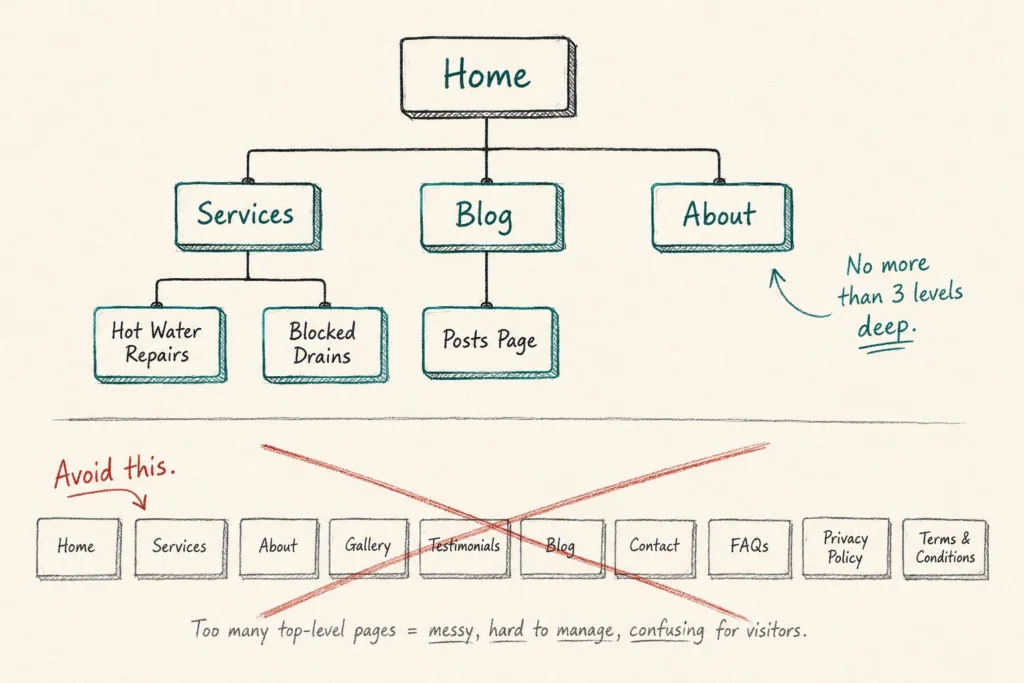
Poor site structure rarely causes immediate problems. Instead, it makes the site progressively harder to manage as content, pages, and plugins are added over time. Things like inconsistent page hierarchies, unclear navigation, and unplanned URL structures are usually what create that friction.
To avoid it, focus on two areas: page organisation and menu hierarchy.
Organise Pages and Keep Permalinks Clean
Group related pages under clear parent pages so your site structure stays logical as your content grows. A flat structure with no more than three levels deep is usually better for both users and search engines.
For example, a Brisbane plumber might have a Services page sitting above child pages like “Hot Water Repairs” and “Blocked Drains.” That’s far easier to manage than ten unrelated pages all sitting at the same level.
That hierarchy should also be reflected in your permalink structure, so set your URLs to match your page structure. Also, don’t rename them right after launching. It can break existing links, disrupt search engine indexing, and create redirect work.
Set Up a Clear Menu and Page Hierarchy
Your main navigation menu should only include your most important pages. When the top menu is overloaded with options, visitors lose their way, and adding new pages later becomes a structural headache. A clean hierarchy with parent and child pages keeps things organised in the WordPress dashboard and reduces the chance of orphaned pages that nobody can find.
Pro Tip: Set up a dedicated blog page and posts page early in your build, even if you’re not publishing regularly yet. It keeps your content separate from your static pages and makes the site easier to manage as your blog grows.
Build a WordPress Site You Can Manage Without the Headaches
A WordPress site that runs without constant attention comes down to four early decisions:
- The right hosting
- A lightweight theme
- A lean plugin list
- A clean site structure
Get those foundations right from the start, and most of the issues that frustrate WordPress site owners simply don’t appear.
If you’d like help building a WordPress site set up to last, the team at DPR Conference works with Brisbane businesses to get the foundations right. Get in touch today.