The moment five people start editing the same WordPress site, duplicate pages, broken layouts, and unexplained changes tend to follow quickly. And the longer it goes on, the harder it gets to untangle. With no user roles in place, there’s no clear way to trace who changed what or when.
That kind of disorder takes a toll on your site. You put time and money into your website, so watching it turn inconsistent is deflating. Before long, pages go live half-finished, content vanishes, and everyone on the team swears they didn’t touch it.
There’s a better way to run it. We’ve helped Brisbane businesses sort out this kind of chaos. This article covers user roles, permissions, and simple governance rules. Ready to get your site back under control?
Let’s get into it.
Why Shared Access Without Rules Breaks Sites

When multiple people edit the same WordPress site without defined user roles, the site quickly becomes disorganised and inconsistent. These are the most common problems we see on unmanaged websites:
- Content Conflicts Are Inevitable: Multiple people editing one site without a clear system creates content conflicts almost immediately. It’s a bit like giving your whole office edit access to the same Google Doc. One person saves over another’s work, and the original is just gone.
- The Damage Is Public: Those conflicts come through as duplicate pages, broken layouts, and overwritten work from other users. WordPress revisions can help trace these changes, but only if someone’s checking them.
- Anyone Can Touch Anything: With no user roles assigned, there’s nothing stopping someone from editing pages, removing content, or publishing posts that aren’t ready. The site becomes everyone’s responsibility, which means it’s nobody’s.
WordPress has a built-in way to prevent all of this. It starts with understanding what user roles are and how they work.
Default WordPress User Roles and What Each One Can Do
WordPress already has a system for controlling who can do what on your site. It’s called default WordPress user roles, and there are five of them. To put it simply, every user on your site fits into one of these five categories:
- Subscriber: This is the most limited role on your site. Subscribers can only log in and manage their own profile, so they can’t edit pages, upload media, or touch anyone else’s content.
- Contributor: Contributors can write and edit their own posts, but they can’t publish them. A user with a higher role needs to review and approve their content before it gets published.
- Author: Unlike Contributors, Authors don’t need anyone’s sign-off to publish. They handle their own posts and media uploads, but other users’ content and site settings stay out of reach.
- Editor: Editors aren’t limited to their own work. With access to every post, the media library, and comment approvals, they’re the closest thing to a content manager your WordPress site has.
- Administrator: The administrator role sits at the top. This person has full administrative access to the entire website, including settings, theme files, and plugins.
Time and again, we’ve seen Brisbane businesses hand out Administrator access to the whole team on day one, and spend months undoing the damage. The right role assignment from the beginning keeps your site predictable and your team working within clear boundaries.
The Administrator Role and Who Should Hold It

Of all WordPress user roles, the administrator role causes the most damage when it’s handed to the wrong person.
Think of it as a master key, one that opens every door on the site, including theme files, plugin settings, and user accounts. That’s a lot of power to hand to the wrong person (and it can take days to undo).
After working with Brisbane businesses on their setups, we’ve seen firsthand how quickly a site unravels. Too many people holding full administrative access is almost always the reason.
Every action an admin takes ties back to WordPress’s roles and capabilities system. That includes deleting pages, installing plugins, and changing site-wide settings with no restrictions at all.
In fact, the Australian Cyber Security Centre recommends restricting administrative privileges as one of the most effective ways to reduce external threats. One or two trusted people should hold this level of access across your entire website.
How to Set Up a Governance Process Your WordPress Team Will Follow
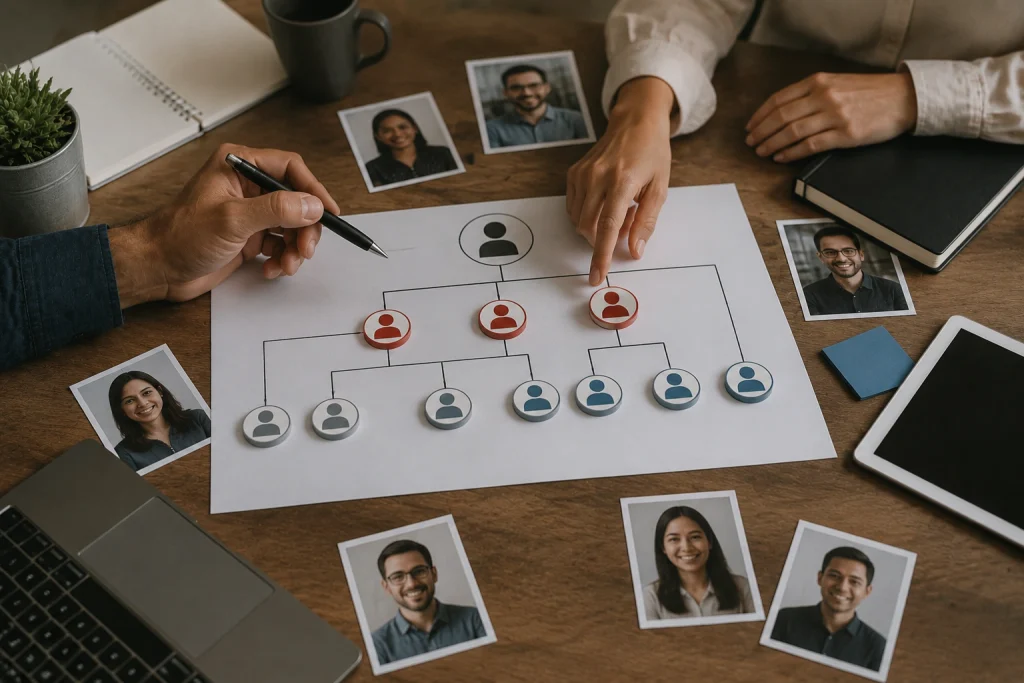
Good WordPress content management doesn’t rely on luck or trust alone. A clear governance process puts boundaries around who can do what, so your site stays consistent even as your team grows.
These are the ground rules every team needs in place:
- Document Who Owns What: Every page and post on your website should have a named owner. Without documentation, legal compliance becomes difficult, and content responsibility falls through the cracks.
- Make Ownership Official: Assign each section of the site to a specific person so everyone knows what they’re responsible for. So when something goes wrong, there’s no confusion about who needs to fix it.
- Run Regular Audits: User accounts accumulate over time, especially on growing teams. A quick quarterly review keeps unused accounts off your site, user roles current, and your access list exactly where it should be.
A written process doesn’t have to be long. Even a one-page document outlining roles, responsibilities, and editing rules is enough to keep most WordPress teams on the same page.
Managing WordPress Users: Adding New Ones and Updating Existing Ones
Once your roles are sorted, adding a new user or updating an existing user in WordPress takes less than two minutes. The process is slightly different for each, so here’s how both work:
Adding a New User
New team members need their own account before they can touch anything on the site. The process takes more or less two minutes:
- Log in to your WordPress dashboard and click “Users” in the left-hand menu.
- Select “Add New” from the top of the users list.
- Fill in the display name, email address, and a strong password.
- Pick the right user role from the dropdown menu, based on what that person needs to do on the site.
- Click “Save,” and the new user account is active straight away.
It’s worth pausing to double-check the assigned role before saving. The role you assign today sets the boundaries for everything that person can do on your site going forward.
Updating an Existing User
Responsibilities change over time, and user roles should modify with them. Updating an existing user’s role takes even less time than adding a new one:
- Go to “Users” in your WordPress dashboard and click on the person’s name.
- Scroll down to the role dropdown and select the updated user role.
- Click “Save,” and the changes take effect immediately.
User roles don’t update themselves (a lot of sites are never reviewed again). An outdated role is just as problematic as the wrong one assigned from the start.
A Cleaner WordPress Site Starts With One Decision
Managing a shared WordPress site gets chaotic when everyone has the same level of access, and nobody has a clear role. WordPress, however, gives you the tools to fix that without overcomplicating things.
This article broke it all down into manageable pieces. User roles define what each person can do. A governance process keeps the team accountable. In the meantime, regular audits make sure access stays current as your site grows.
At the end of the day, getting this right is much easier with the right people behind you. DPRConference works with Brisbane businesses on this kind of setup. Our team will walk you through every step you need.
So reach out today and let’s get your site sorted.