When you’re managing a small business, website maintenance can easily slip down your to-do list. You might be short on time, unsure which tasks need regular attention or worried about missing something important.
This website maintenance checklist for small businesses breaks the job into manageable tasks. You’ll learn what to check, how often to do it, which warning signs to watch for and when to bring in a professional.
Website Security and Software Updates
Your website’s security depends partly on keeping its software up to date and limiting who can access it. Outdated plugins, abandoned themes, unused administrator accounts and expired certificates can all create unnecessary risks.
Use the following checks to catch problems before they affect your website or customers.
Update Your CMS, Themes and Plugins
Check your content management system (CMS), themes and plugins for available updates at least weekly. These updates often fix security vulnerabilities, improve compatibility and address bugs that could affect your website.
If you use WordPress, open your dashboard and select Dashboard → Updates to see available updates. Review the installed plugins and themes as well, and remove any you no longer use.
Don’t forget to make sure you have a recent backup before updating. Updates can sometimes cause compatibility problems, so test important website functions afterwards, especially contact forms, booking systems and checkout pages.
Also, make sure your plugins and themes still receive updates from their developers. If a plugin or theme is no longer updated by its developer, replace it with one that still is, even if it’s less well-known.
Check Security Alerts and Suspicious Activity
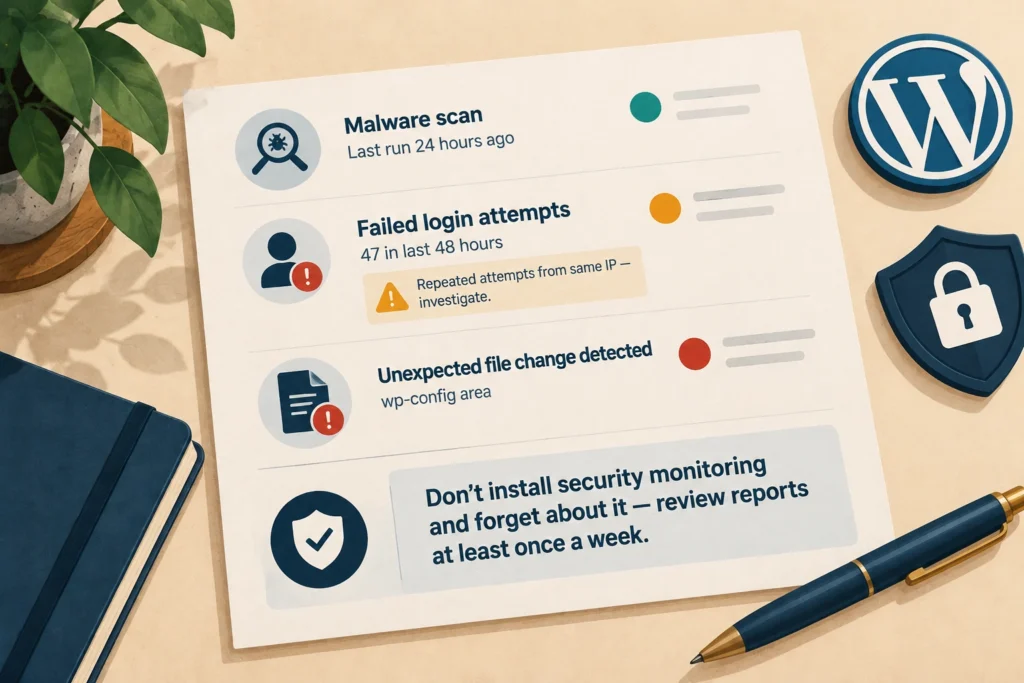
One of the biggest risks of a hacked website is that you might not notice anything wrong. Your pages can look and work as usual while someone uses your site to spread malware, send spam or access sensitive information.
To catch these problems early, we suggest using a security plugin or monitoring service like Wordfence, WP Guard or Sucuri. They monitor your website in real time and alert you the moment something looks off.
But don’t install them and forget about them. Review their reports and notifications at least once a week. Look for malware warnings, unexpected file changes and repeated failed login attempts. Also check for browser security warnings or alerts in Google Search Console, which may indicate that your site has been flagged as unsafe.
And when you find something suspicious, identify which file, account or activity triggered the alert. Don’t start deleting files at random or assume a warning is harmless. If you suspect someone has compromised your website and can’t identify the cause, contact your hosting provider or a security professional.
Review User Accounts and Access Permissions
Anyone with administrator access can change your website’s settings, install plugins and themes, or add and remove user accounts. That’s why it’s important to review who has access and what they’re allowed to do.
First, review your user list monthly and remove accounts belonging to former employees or contractors who no longer need access. For people who still need access, assign the lowest permission level that lets them do their work. For example, someone who only writes blog posts usually doesn’t need administrator privileges.
Next, protect the accounts that have permission to manage your website. Avoid sharing login details, and enable two-factor authentication for administrator accounts where possible. This adds a second verification step when someone signs in, so a stolen password alone isn’t enough to get in.
And if you find an unfamiliar account, confirm with your team or website developer whether it’s still needed. If nobody can identify it, contact your hosting provider or security specialist to investigate before removing it.
Check Your SSL Certificate
An SSL certificate confirms your website is secure and encrypts the data exchanged between your site and its visitors. Most certificates renew automatically, but it’s worth checking the expiry date manually every few months.
If a certificate lapses, browsers will warn visitors the connection isn’t safe, even if nothing else on the site has changed. That warning alone can be enough to send a visitor straight to a competitor instead.
Website Backups and Recovery
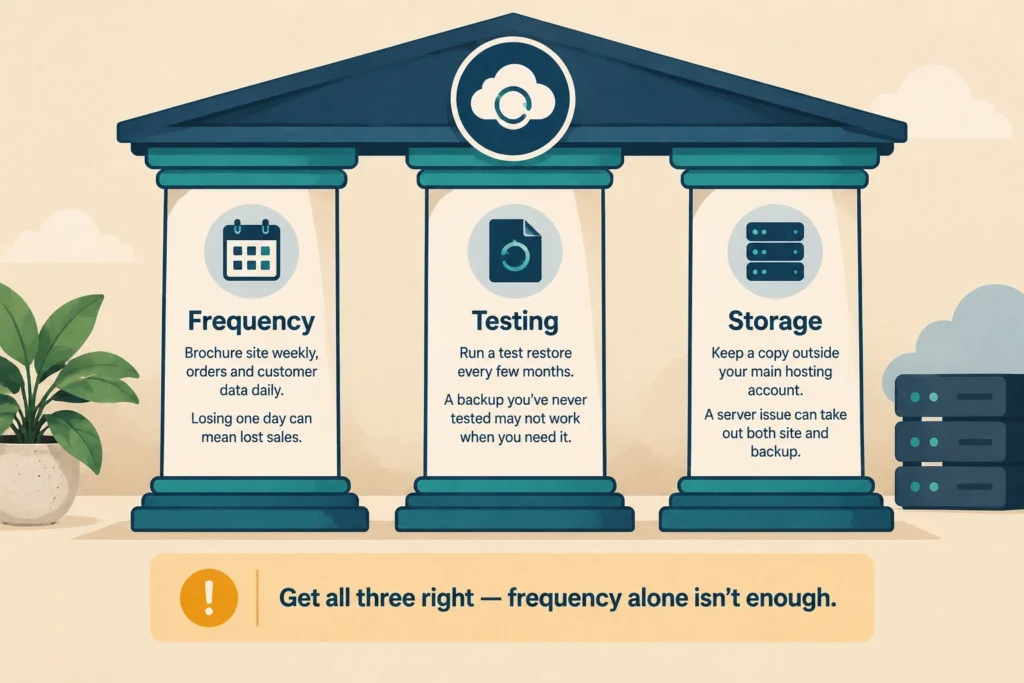
Imagine spending months building your website, only to lose important pages, customer records or orders after a failed update. A reliable backup gives you a way to recover, provided the backup is complete and restorable.
To make your backups reliable, you need to get three things right: frequency, testing and storage.
Say you run a simple brochure site that rarely changes. In that case, a backup once a week is usually enough. But if your business takes orders or stores customer details daily, back up your site every day. Losing even one day’s data could mean lost sales or extra support work.
Testing is just as important. Run a test restore every few months to check that your backup works. Also, keep a copy outside your main hosting account so a server issue can’t take out both your site and its backup.
Website Speed and Performance
We see a lot of site owners focus on design and content while neglecting speed and performance, even though both affect conversions and search visibility. In fact, Google found that 53% of mobile site visits are abandoned if pages take longer than three seconds to load.
Fortunately, you don’t need a huge budget to improve your site’s speed and performance. Let’s look at what you can do.
Check Page Loading Speed
To know whether your site’s speed is actually a problem, you first need to measure it. PageSpeed Insights is a free tool that does this for you. Just open the site, paste in the page URL you want to check, and run the test.
We recommend starting with your homepage, since it’s usually the first page a visitor lands on. Then work through your other key pages, like product listings or contact forms, one by one.
If a page is running slower than normal, the report will highlight potential problems, such as large images, excessive scripts or a slow server response.
Review Core Web Vitals
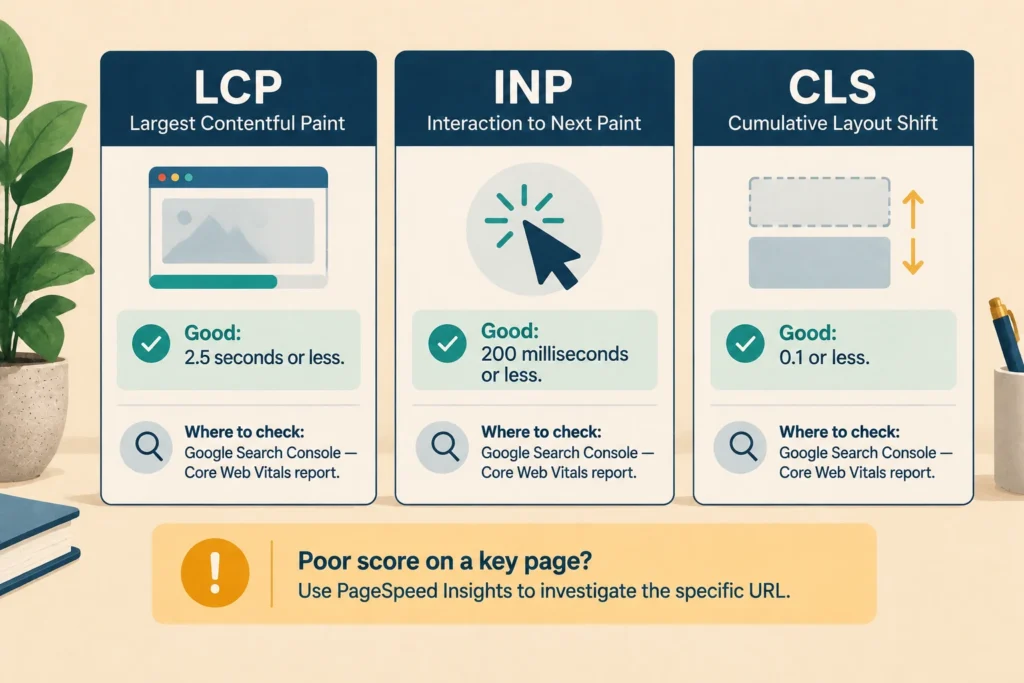
Core Web Vitals are three metrics Google uses to measure your site’s loading speed, responsiveness and visual stability. Google also considers Core Web Vitals as part of its ranking systems, so they’re worth checking as part of your performance review.
There are three metrics to track:
- Largest Contentful Paint (LCP): How quickly the main content appears. Aim for 2.5 seconds or less.
- Interaction to Next Paint (INP): How quickly the page responds to clicks, taps and other interactions. Aim for 200 milliseconds or less.
- Cumulative Layout Shift (CLS): How much page content moves unexpectedly. Aim for a score of 0.1 or less.
These are Google’s recommended thresholds for a good user experience. You can check your real-world results in Google Search Console’s Core Web Vitals report.
If one of your pages comes back with a poor score, don’t panic. Use the report to identify problem areas, then prioritise the pages your customers use most. PageSpeed Insights can help you investigate individual URLs, while Search Console shows performance patterns across groups of pages.
Check for Broken Links, Images and Display Issues
Have you ever clicked a link only to land on an error page? Your visitors can run into the same problem on your website. And they’ll often leave without ever coming back.
To prevent this, test your important pages at least once a month. Start with the links and buttons people use most, such as your main navigation, calls to action, and links to related pages. Make sure they lead to the right destinations and that your images load properly.
For larger websites, a broken-link checker or site crawler like Screaming Frog can save time by scanning multiple pages at once.
When you find a broken link, replace it with a working link to the same page or a suitable alternative. If the page has moved, redirect its old URL to the new one so visitors can still find what they’re looking for.
Domain, Hosting and Email Checks
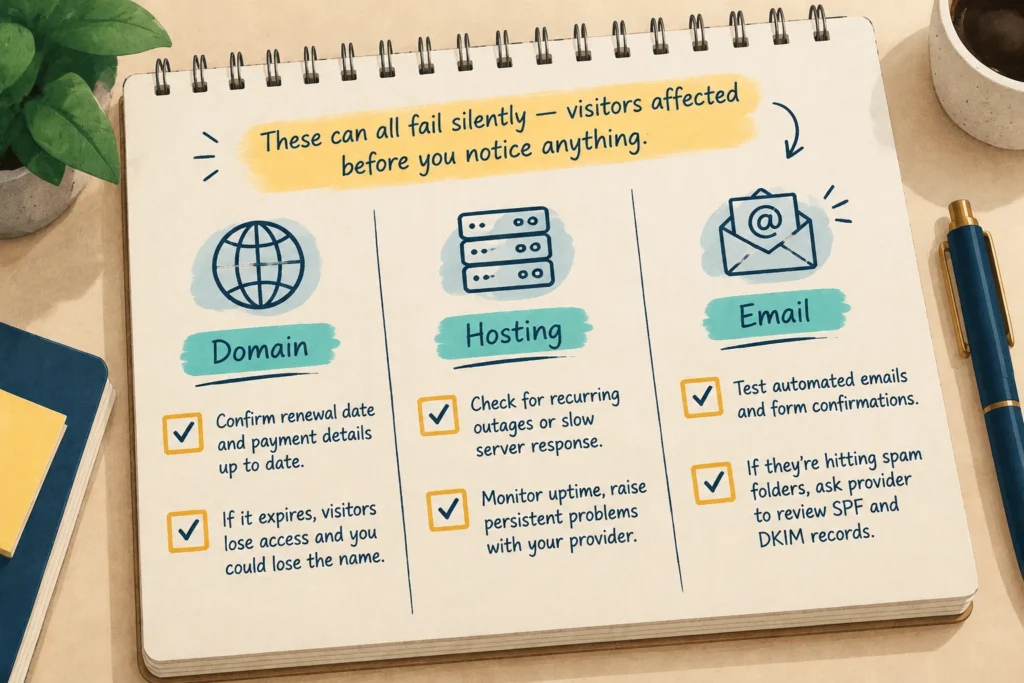
Your website can look perfectly fine while problems with its domain, hosting, or email go unnoticed. Checking these services regularly can help you catch issues before they affect visitors.
Start with your domain registration. Confirm when it’s due for renewal and make sure your payment details are up to date. If the domain expires, visitors might lose access to your website, and you could lose the name altogether if someone else registers it.
Your hosting service deserves a similar check. Occasional outages and slow server response times can affect your website even when you haven’t changed anything. Monitoring uptime helps you spot recurring problems and gives you something concrete to raise with your hosting provider.
Email problems can be harder to notice. Contact form replies and order confirmations might be reaching spam folders instead of inboxes, leaving visitors waiting for messages that never arrive. Test your website’s automated emails periodically.
If they aren’t being delivered properly, ask your hosting or email provider to review your domain’s SPF and DKIM records. These are authentication records that help receiving mail servers verify your messages.
Website Content and SEO
Regular content and SEO checks help keep your pages accurate and make it easier for search engines to find the content you want people to see. Start with the technical side of things.
Check for Crawl Errors and Broken Redirects
Google needs to crawl your pages to understand what’s on them before it can show them in search results. Technical issues like server errors or blocked URLs can get in the way of that, often without you noticing.
A quick monthly review in Google Search Console’s Page Indexing report will show you if any important pages have dropped out of Google’s index. When this happens, the report can help you find the cause, such as an accidental noindex tag, a server error or a blocked URL.
Don’t worry if a few low-priority pages show up here too (not every unindexed page needs fixing). Focus your attention on the pages you actually want customers to find.
While you’re at it, check your redirects whenever you move or delete a page. An old URL should redirect to a relevant, working page, so visitors and search engines don’t hit a dead end.
If your organic traffic drops unexpectedly, Google’s guide to debugging search traffic drops can help you investigate further.
Update Outdated Business Information
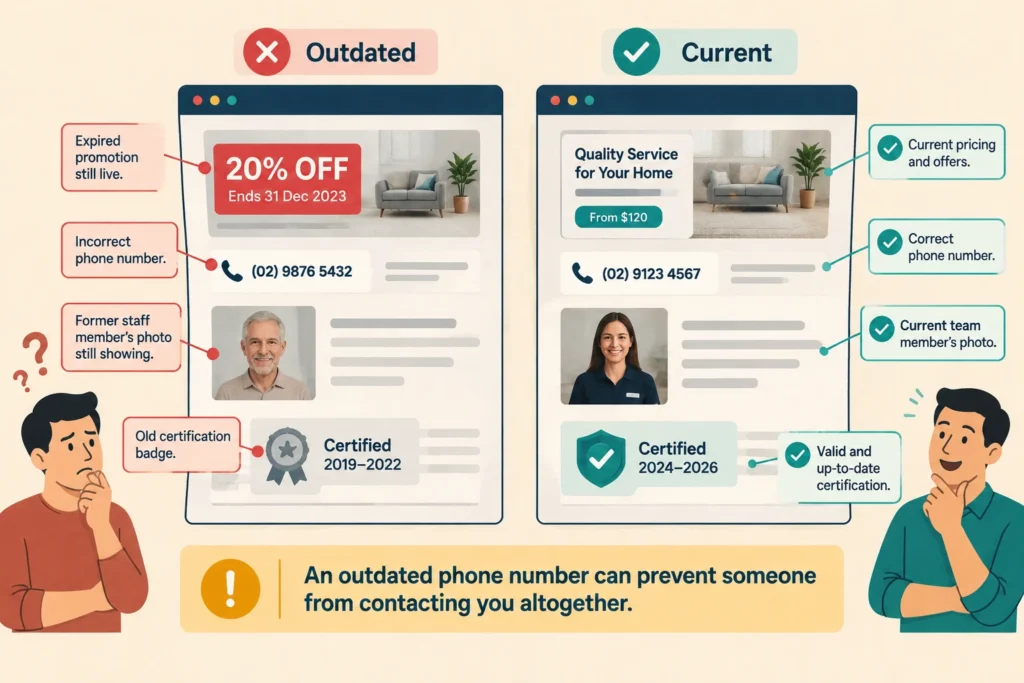
When did you last review the prices and service details on your website?
A customer who finds an expired promotion or an incorrect price might lose confidence in your business. An outdated phone number can be even worse, since it could prevent someone from contacting you altogether.
So review your main service pages, product descriptions, opening hours and contact details monthly. Update them sooner whenever something changes.
Check staff profiles, service areas and testimonials as well. Old certifications, former team members or outdated photos are easy to overlook but can make your business look neglected. If you serve customers at a physical location, make sure your website’s address and opening hours reflect your current details.
Keep Your Website Running Smoothly All Year Round
If you’ve worked through this checklist, you’re already in a stronger position than most small businesses. You now know what to review and how often to do it.
But if any of this feels like more than you want to manage yourself, DPRConference can take care of it for you. We’ll handle the security checks, backups and updates, so you can focus on running your business. Get in touch for a free consultation.