A WordPress website handover should include every login, credential, and piece of documentation the next person needs to manage the site. Without them, a new developer may have to spend time tracking down access or working out how the site was set up.
The problem is, you can’t ask for what you don’t know you need. That’s what this guide is for. You’ll learn what the outgoing developer should leave behind so the next person can step in and manage the site without having to piece everything together.
Admin and Hosting Access
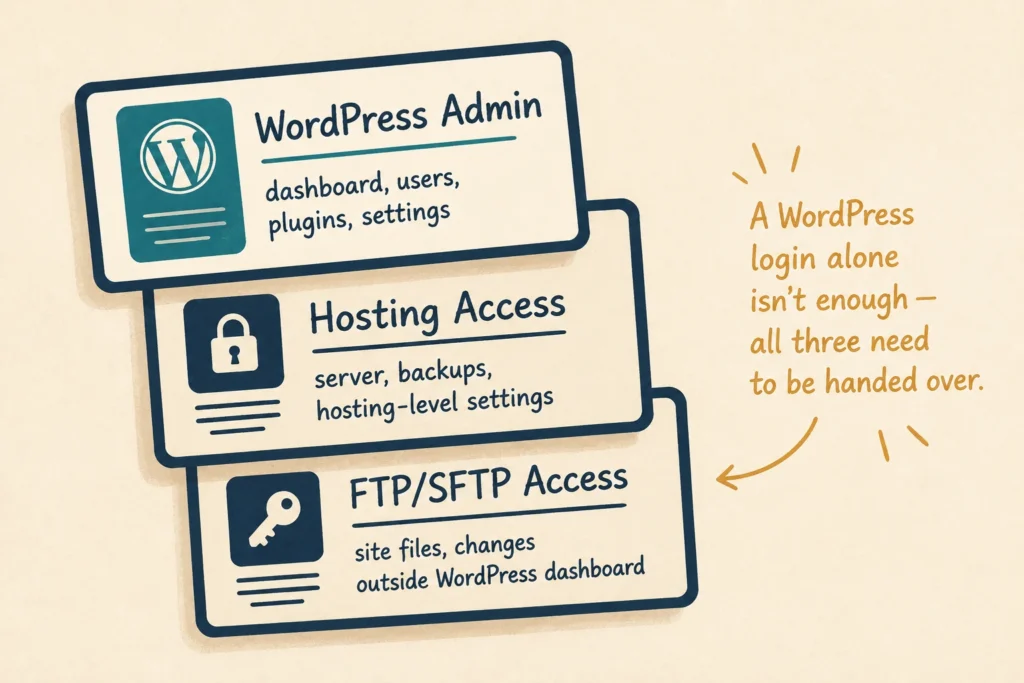
First and foremost, hand over your WordPress admin login to the new developer. Otherwise, they won’t be able to manage users, install or update plugins, change settings, or handle other tasks that require administrator access.
Then there’s hosting access. This is where the site’s server, backups, and other hosting-level settings are managed, so a WordPress login alone isn’t enough. The incoming developer may need this access to troubleshoot issues that can’t be fixed from the WordPress dashboard.
The handover should also include FTP or SFTP access. These let the incoming developer reach the site’s files directly, so they can make changes outside WordPress itself when needed.
Domain and DNS Details
The domain is your website’s address, while DNS tells that address where to go. The problem is that many business owners don’t know who manages their domain or DNS until they need to make a change.
That’s why the handover should include:
- Domain Registrar: The company where the domain sits, such as GoDaddy, Namecheap, or Crazy Domains (yes, that’s an actual company name).
- Registrar Login: Include the username or email and password needed to access the domain account.
- Domain Expiry Date: This tells the new developer when the domain needs renewing.
- Nameserver Details: The DNS provider currently managing the domain, if it’s different from the host.
- DNS Records: A record of the current settings in use for the website, email, and any third-party services connected to the domain.
Keep a record of these details before the outgoing developer leaves. Otherwise, even a simple domain or DNS change can turn into a troubleshooting job for the next person.
Plugin and Theme Information
Some WordPress plugins and themes come with recurring licence fees, particularly premium products. Those licences can cost anywhere from a few dollars a year to hundreds of dollars, depending on the product and number of sites covered. You don’t want to discover after the developer leaves that a licence was tied to their account and you now need to pay for it again.
So, before they leave, ask the outgoing developer to list every premium plugin and theme in use, along with the licence owner and renewal date.
You should also tell the incoming developer whether the site uses a custom or off-the-shelf theme. If it’s custom-built, ask them to document any custom features the new team needs to know about.
Custom Code and Development Notes
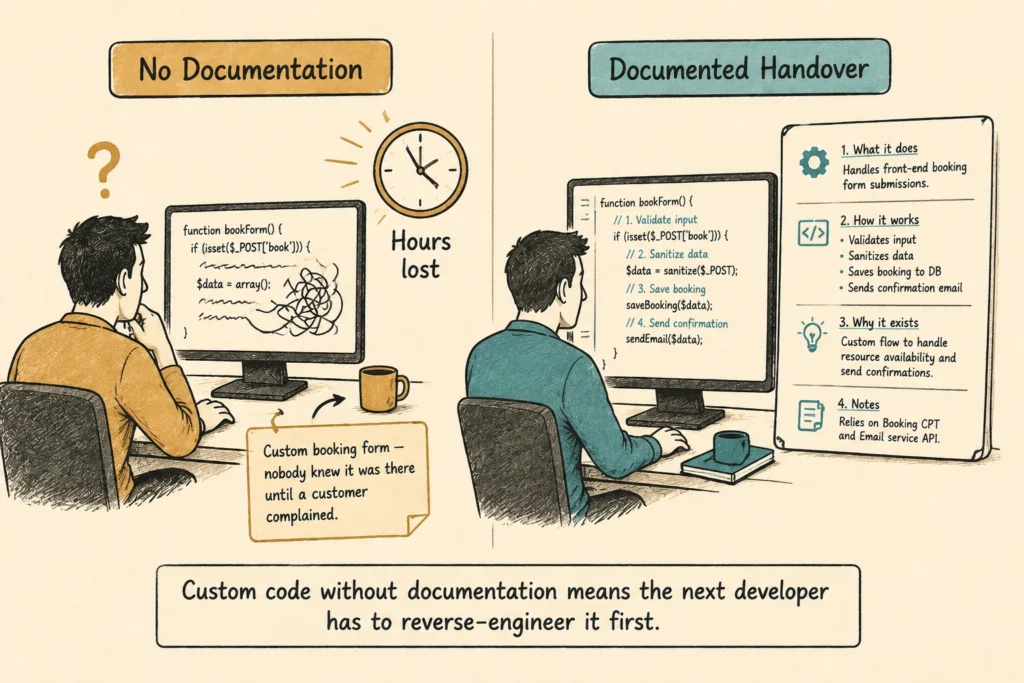
Custom code means site-specific features, such as custom forms, layouts, or functionality that doesn’t come with the theme. If the old developer doesn’t hand this over, the new one won’t know it exists. Worse, they might misunderstand what it does and remove it by mistake.
Take this example. We took over a Brisbane retail site where the previous guy had left without documenting a custom booking form built into the checkout page. Nobody on our end knew it was there until a customer complained that bookings weren’t syncing properly. In the end, it took most of a day to fix something that should’ve taken an hour, just to work out what the code was doing.
That’s why you should always document custom code, along with what it does and why it’s there. This gives the next developer the context they need to work on the site without having to reverse-engineer it first.
The same principle applies to changes made directly to the site’s database. Document these as well, so the next developer knows what was changed and why if something goes wrong later.
Backups and Recovery Information
Say the website goes down tomorrow. You know there’s a backup somewhere, but nobody knows where it is or how to restore it. That’s not much help when the site needs to come back online quickly.
The best way to avoid this? Ask the outgoing developer where the backups are stored, how often they’re created, and how to restore the site from one. They could be in cloud storage, the host’s own system, or on a separate server, so find out exactly where they’re kept before the developer leaves.
It’s also worth keeping a separate copy of your backups that isn’t connected to the site. The Australian Cyber Security Centre recommends offline backups because ransomware can spread to connected storage. That gives you another recovery option if your main backup is compromised.
Third-Party Services and Integrations
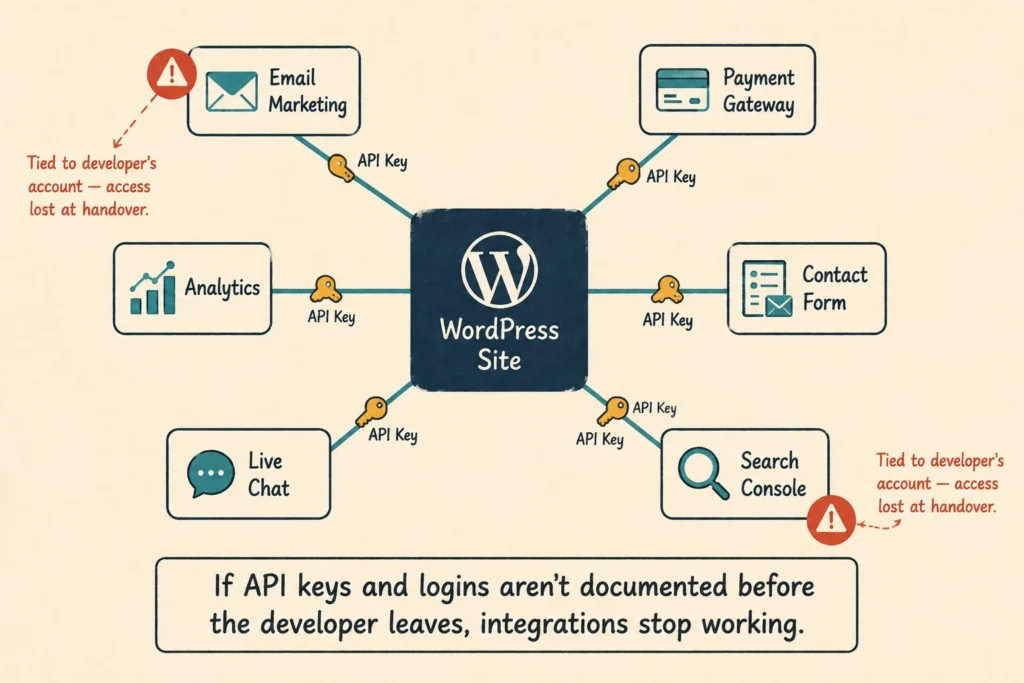
Most websites connect to external services. Email marketing tools, payment gateways, analytics platforms, contact form services, and live chat systems are all common examples. Each one has its own login and may also use an API key to connect it to the website.
An API key is a code that allows two services to communicate. Think of it as a password between software systems rather than between a person and a system. If it isn’t documented and the outgoing developer takes it with them, the integration will stop working.
To prevent that, make a list of every third-party service connected to the site, along with the login credentials and any API keys in use. Make sure Google Analytics and Google Search Console also belong to the business’s own Google account, rather than being tied to the developer’s account. That way, the next guy can access the tools they need without having to track down the predecessor.
Known Issues and Unfinished Work
A website rarely reaches launch without a few loose ends. There may be unresolved problems, incomplete work, or temporary solutions that the next developer needs to know about. Make sure that information gets passed on before the developer leaves, rather than leaving the next one to discover it for themselves.
Known issues to document:
- Bugs that were identified but not fixed, including what triggers them
- Features that were started but not completed
- Workarounds currently in place and what problem each one solves
- Browser or device compatibility issues found during testing
This gives the new guy a clear picture of what they’re taking over. It also prevents the business owner from discovering an existing problem only after a customer encounters it.
WordPress Website Maintenance and Update Instructions
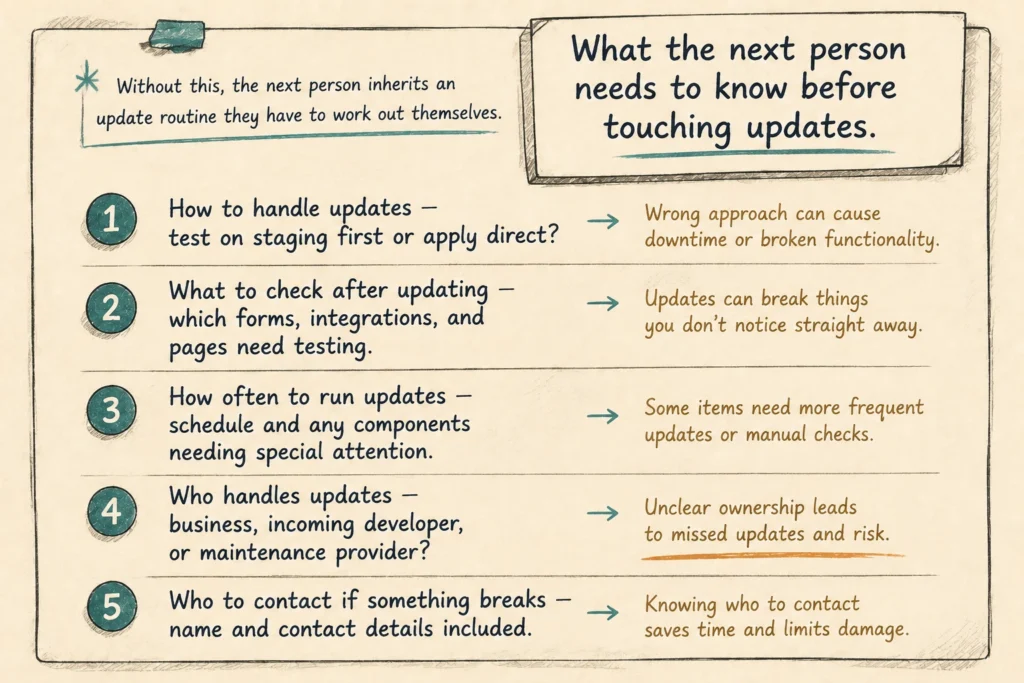
WordPress requires ongoing maintenance. Plugins, themes, and WordPress itself release updates regularly. Without updates, security gaps can open up, and compatibility issues can develop over time. So make sure the handover covers the following:
- How to Handle Updates: Explain how WordPress core, plugins, and themes are updated, including whether changes are tested on a staging site first.
- What to Check After Updating: If certain pages, forms, integrations, or other features need testing after an update, make sure the next person knows which ones to check.
- How Often to Run Updates: The handover should state the usual update schedule and flag any plugins, themes, or other components that need special attention.
- Who Handles Updates: Make it clear whether the business, incoming developer, or a maintenance provider will be responsible for ongoing updates.
- Who to Contact if Something Breaks: Include the relevant contact details so the person handling the site knows who to contact when an update causes a problem.
With these instructions in place, the next person can follow an established maintenance routine instead of having to work it out themselves.
Protect Your WordPress Website With a Proper Handover
A thorough handover takes time to prepare, but it saves far more time and cost down the track. Problems often arise when access details were never documented, licences were tied to the developer’s account, or nobody knew where backups were stored.
And if your previous developer has already left without a proper handover, DPRConference can audit your site and identify what’s missing. Contact us to get the gaps sorted before they become a problem.